
Sidebar
Table of Contents
On Board Computer [OBC]
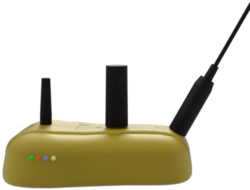
All autonomous vehicles may be required to install an OBC.
See also 2027 Official Rules Chapter IV Article 413: Telemetry
Description
The On-Board Computer collects data from the sensors in the vehicle and logs and transmits it to a server.
Installation before event
A 31-35 mm hole in the vehicle body must be drilled before shipping your vehicle. There should be clearance of an equal size to the holding plate (153 x 100 x 60 mm) inside the vehicle’s body to allow for installation.  |
|
| To avoid transmission issues or obstruction of antennae, the selected area must have a clear view to the sky within 90° to all sides. | 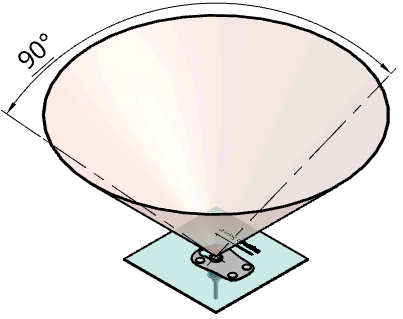 |
| The hole should be drilled such that, once mounted, the On-Board Computer Holding Plate will be in a horizontal position, +/- 20°. Support can be added between holding plate and the car body to bring the OBC to a horizontal position. Support the whole lenght and width to prevent the holding plate from bending. | 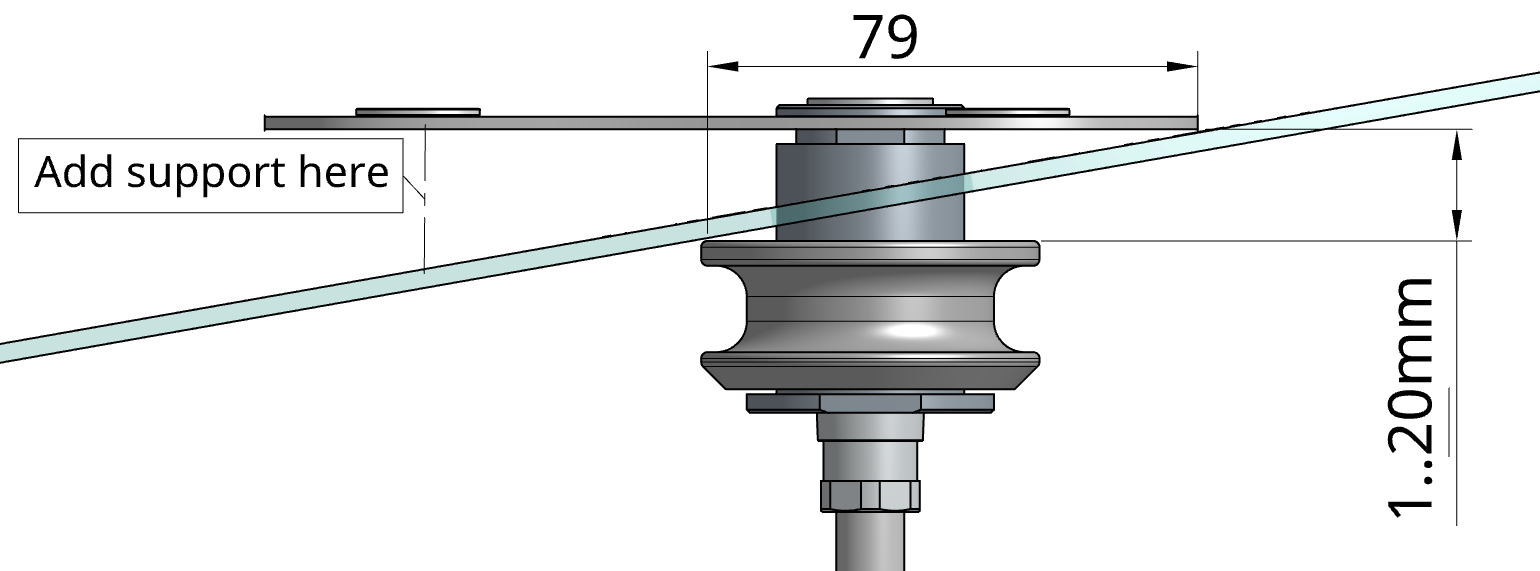 |
Prototype vehicles can optionally place the OBC inside the car if the car design does not allow for an OBC to be mounted on top. A GPS antenna (approx. 50x50x20mm) will be placed on the outside of the car instead of the OBC. Contact the telemetry team if you want to use this option.
Installation at event
Characteristics
| Weight OBC | 250g (0.55lbs) |
|---|---|
| Weight holding plate | 68g (0.15lbs) |
| Weight Backbone | 420g (0.92lbs) |
| Total weight | 740g (1.62lbs) |
| Backbone power supply voltage | 12-17 VDC |
| Power supply maximum current | 1A |
| Power consumption (average) | 4-7W |
Power consumption not including peripherals
Drawings and Dimensions
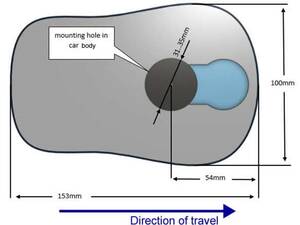
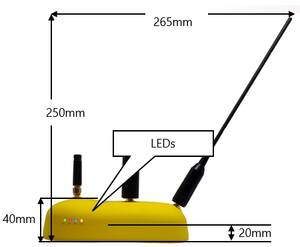
3D model
Handling
Startup
Push the Start Button on top of the On Board Computer (OBC) to start. The device is able to startup when the following conditions are met:- The Battery is charged and connected to the Back Bone (BB).
- The OBC is connected to the Back Bone (BB)
The system will show that it is powered on by the green LED on the OBC and the 12V and 3.3V LEDs on the Back Bone (BB).
The power for the sensors will be switched on during startup depending on the configuration.
Troubleshooting
30-60 seconds after the POWER LED is lit, the device checks its own state and the state of the connected sensors. The Back Bone (BB) holds a configuration of the mandatory sensors. If there is a problem with the on board computer or one of the sensors one or more of the LEDs will flash.| LEDs | Interpretation | Action |
|---|---|---|
  | Starting | Wait up to 60s |
 | Connecting | Wait |
  | Ready | Everything is working fine. Only go on track when you see this pattern |
 | Problem with Sensor | Ensure all sensors are connected and turned on |
 | Looking for cloud reception | Contact technical team if this stays unchanged for more than 5 minutes |
 | Battery low | Replace or recharge Battery |
Charging
During the Autonomous Competition the following applies:
- Teams do not need to charge the telemetry system.
- Teams are required to turn off the OBC when not used for within next 15 min.
- Teams are required to turn off the sensors (JM and LFM) when the OBC is turned off.
- The telemetry team replaces low batteries with charged ones if needed.